( Pro Edition )
The Schema Migrator tool is a powerful tool to migrate existing database objects to other databases, without manually running a script.
The best thing about this tool is that it support any ODBC or ADO datasource and native connectivity datasources, so you can easily convert an existing schema, or parts of the schema, to another database. The tool will warn you or generate errors when mapping datatypes, defaults etc... The Schema Migrator will map unknown datatypes to known datatypes (eg: Money in MS SQL is mapped to NUMERIC in InterBase), map column DEFAULT values and attempt to create the database objects.
For available migration options, see here - for the dialog instead of the wizard, see here, for information on the Migration Report, see here.
Note:
•Things like "collation" will be lost during a cross-database-engine migration as these differ widely across database engines.
•When migrating to the same type of database engine, all object properties will be used.
Schema Migration Wizard
The Schema Migrator tool can be reached via Tools | Schema Migrator, the Tools toolbar button or a context click on the Database Navigator - either the root Schema node or any object or object list like Tables or Indices. If you select Migrate from a single object or object list, you will get a different window - a dialog - instead of the wizard.
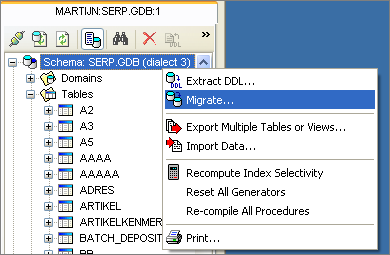
The Database Navigator with the context popup for the Schema node
The Schema node context option and the menu option both start the Schema Migration Wizard. A step-by-step interface to get you through the migration process.

The Schema Migration Wizard - Welcome page
Depending on whether you started the wizard from an existing connection, or from the toolbar, you need to select a source datasource. If you started from an existing connection, this one is used as the source datasource.
As a source datasource, you can use any ODBC, ADO or supported native connectivity datasource. After using the Next button, you can select a target datasource, for which you can use any supported native connectivity datasource.
See also: Building an ADO Connection String
Using Next again brings you to the Available Objects page.

The Schema Migration Wizard - Available Objects page
On the Available Objects page, you can select the objects to migrate. Objects that aren't supported on the target datasource, eg: Views, aren't shown - as these cannot be migrated. If you use the same database engine for both the source and the target, all supported objects should be visible.
Note:
•The Constraints node, if available, doesn't list Primary Key constraints - these are migrated "in-line" when migrating tables.
•When using different datasource types for source and destination, but both sources support Views (or similar source-code objects), the migration process might fail for that object if database engine specific language (SQL or used stored functions) features are used.
•Instead of using the Indices, Triggers or Constraints nodes to select so-called "sub-objects", you can choose to auto-migrate these objects op the Options page (see below).
Options Page
There are several options available when migrating - below is an explanation of each option. Some options might not be appropriate for each migration, but all options are always visible (eg: sequence options when the target datasources doesn't support sequences).
Option |
Description |
Names to uppercase |
Will convert all object names to Uppercase equivalents - useful when converting from a datasource that supports mixed case names without delimited identifiers.
|
Names to lowercase |
Will convert all object names to Lowercase equivalents - useful when converting from a datasource that supports mixed case names without delimited identifiers or migrating to engines that need lowercase table names in order to avoid platform specific naming issues, like MySQL.
|
Removes spaces and illegal characters from names |
Will remove any "strange" or illegal characters from object names.
Example: My_Table_Name-test
will become
My_Table_Nametest
|
Use default primary key constraint naming |
Overrides the current primary key constraint name and uses the name template for primary key constraints when migrating a primary key constraint.
|
Include domains used by tables |
When migrating tables from and to a database engine that supports domains, the migrator can automatically convert domains in use by the tables that are being migrated. This way, you can easily migrate only the required domains, instead of selecting all domains.
Mutually exlusive with "Map domains to raw datatypes"
|
Map domains to raw datatypes |
If you don't want to migrate domains or don't care about domains, you can use this option to avoid using domains in the target datasource.
Mutually exlusive with "Include domains used by tables"
|
Include table indices |
Automatically migrate any indices from this table.
|
Include table constraints |
Automatically migrate any constraints from this table. Note that Foreign Key constraints are created (physically) after all tables have been created.
|
Include table triggers |
Automatically migrate any triggers on this table. Note that Triggers are created (physically) after all tables, views, stored procedures and stored functions have been created.
|
Copy current value |
When migrating sequences (also called Generators), you can choose to migrate the current values by checking this option.
|
After selecting Next again, the Progress page is shown.

The Schema Migration Wizard - Progress page
By using the Migrate button, the actual migration process is started. The migration process is a two-step process:
| 1. | Collecting the objects to migrate, auto-including domains, indices, constraints and triggers if selected on the Options page. Converting these objects in memory. |
| 2. | Executing the metadata statements on the target datasource. |
If you check the Don't create objects, but only convert to script checkbox, step "2" isn't executed.
With Show script after creating objects checked, a Script Editor is created with the script used to create the objects.
After that, the results will be shown in the Schema Migration Report.
Schema Migration Dialog
The Schema Migration Dialog, reachable via context clicks on the Database Navigator - but on single objects or object lists (like Tables), supports the same options and can create the objects in the target database as well. The major difference is that the Target Schema part only let's you select from registered or known databases and servers (mostly applies to InterBase and Firebird).
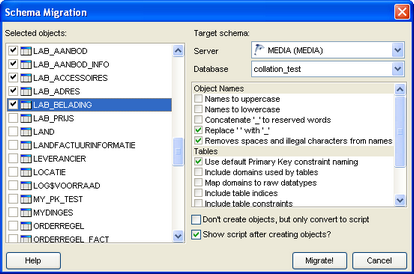
Schema Migrator Dialog - quick schema migration
After using the Migrate! button, the same process of migration is used as with the wizard. The migration process is a two-step process:
| 1. | Collecting the objects to migrate, auto-including domains, indices, constraints and triggers if selected in the Options. Converting these objects in memory. |
| 2. | Executing the metadata statements on the target datasource. |
If you check the Don't create objects, but only convert to script checkbox, step "2" isn't executed.
With Show script after creating objects checked, a Script Editor is created with the script used to create the objects.
After that, the results will be shown in the Schema Migration Report.
After the migration process, a report is created (below is an example screenshot). It lists the selected objects per object-node (like Tables). Automatically collected objects, like "domains in use by a table" are listed under the first occurence in a table, indices, constraints and triggers selected via the options are also listed under the table name.
A folder name in Red indicates at least one error in an object in the folder, while a folder in Bold indicates at least one warning in an object in the folder. The same principle applies to single objects - if an object name is bold red, it means there's at least one error in it:
•Errors are generated for a failed metadata statement, or failure to map a certain datatype
•Warnings are generated for datatype mappings/conversions, missing CHECK constraints for Domains, missing object descriptions etc... In short: anything outside the ordinary.
The bottom part of the report screen holds details on the error/warning/message.

Schema Migration Report - an example report
Message Filtering
You can filter for Messages, Warnings, Errors, Errors & Warnings or have no filter. This makes the migration report easier to read. The filter doesn't filter all messages, but filters objects - if you select the Errors filter, only objects that have at least one error message will be shown.
Report Printing
Use the Print Report button to print the current filtered report.
Note:
There's a special version of the migration tool if your Database Workbench license supports both InterBase and Firebird to migration from InterBase to Firebird and the other way around. This version, which is used transparently, warns about characterset differences, removes InterBase or Firebird specific defaults etc.